> For the complete documentation index, see [llms.txt](https://dexcore.gitbook.io/guide/llms.txt). Markdown versions of documentation pages are available by appending `.md` to page URLs; this page is available as [Markdown](https://dexcore.gitbook.io/guide/modules/outlook-hotmail/bot-interface.md).
# Bot Interface
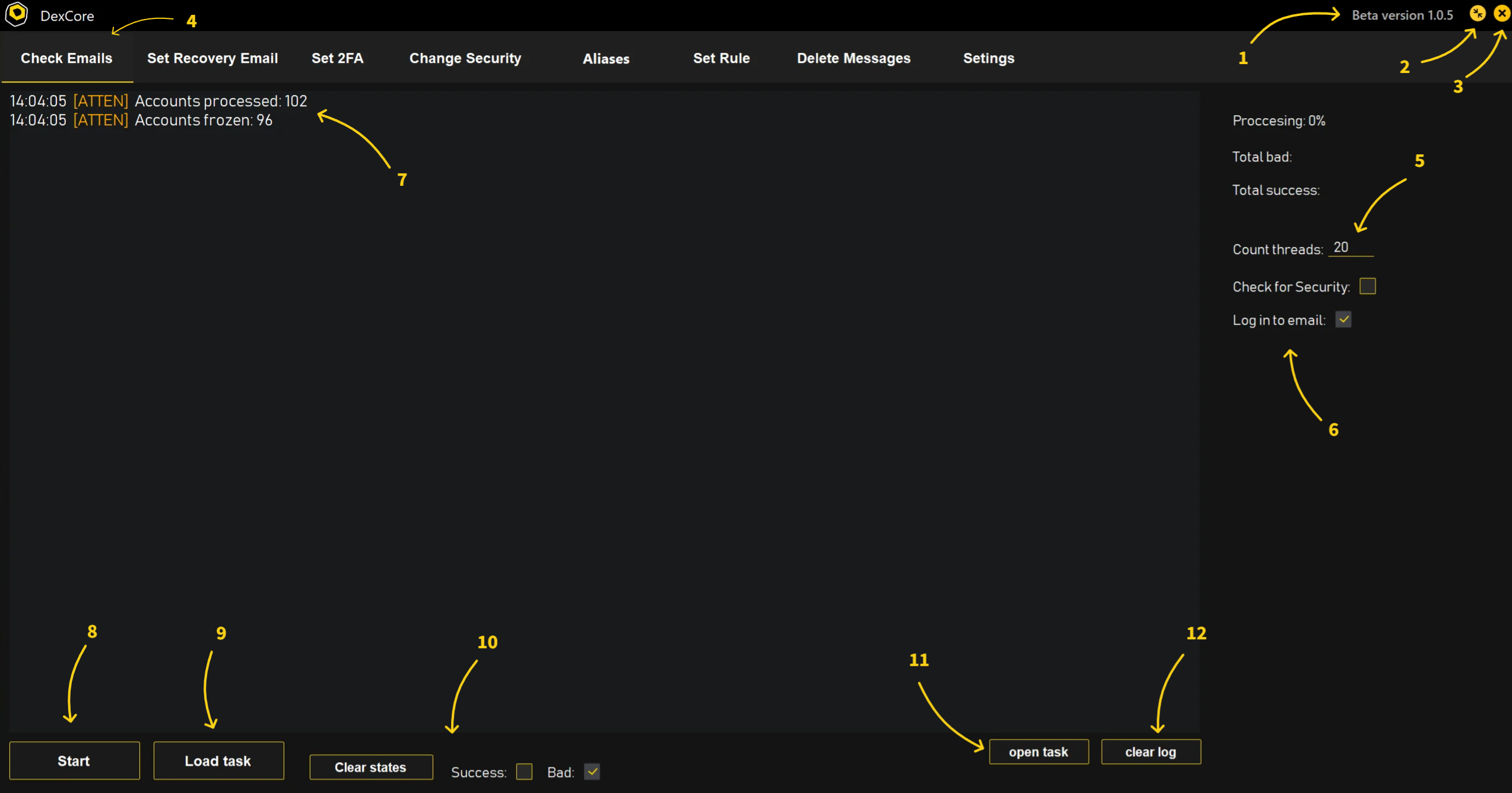
The DexCore bot interface has **13 key elements**, labeled in the screenshot below. Each number corresponds to a section on this page.
{% hint style="danger" %}
**Set the number of threads BEFORE clicking Start.** You cannot change threads while a task is running. If you need to change them, stop the task first, change the number, then start again.
{% endhint %}
{% hint style="danger" %}
**If the bot seems stuck, do NOT close it!** Use the **Stop** button (item 13) first. Closing the bot while it's running may cause data loss — your task file changes won't be saved.
{% endhint %}
***
### 1. Bot Version
Shows the current version of DexCore. Use this to check if your bot is up to date.
### 2. Minimize Button
Minimizes the bot window without stopping the task. The bot keeps working in the background.
### 3. Close Button
Completely shuts down the bot and stops all operations.
{% hint style="warning" %}
Use the **Stop** button (item 13) to stop a task before closing the bot. Closing during operation may cause unsaved data.
{% endhint %}
### 4. Function Button
Lets you switch between different functions (Check Emails, Set Recovery Email, etc.). You can switch functions while the bot is running.
### 5. Number of Threads
{% hint style="info" %}
**What are threads?** Threads are like workers. More threads = the bot processes more accounts at the same time. But more threads need more computer power and more proxies.
{% endhint %}
Adjust the number of threads the bot uses. Recommended: **30–40 threads** with 100 proxies on an average Windows server. Fewer proxies = fewer threads.
{% hint style="danger" %}
**Set threads BEFORE clicking Start.** The bot will NOT change the thread count during a running task. If you change the number while a task is running, nothing will happen until you stop and restart.
{% endhint %}
### 6. Function Parameters
Lets you adjust settings for the selected function. For example, switching between "Check for Security" and "Log in to Email" modes.
Some functions have many parameters — these are placed in a sub-menu called **Settings** (click the Settings button to open it).
{% hint style="warning" %}
**Set all parameters BEFORE starting the task.** You cannot change parameters while the task is running.
{% endhint %}
### 7. Log Information
Shows real-time information about the bot's operation.
When a task starts, it shows:
* ✅ **Accounts processed:** Number of accounts ready for processing (accounts with an empty State column).
* ❎ **Accounts frozen:** Number of accounts that already have a State. These are skipped to avoid overwriting existing data.
### 8. Button: Start
Starts the task. If no task file is selected, clicking Start will open a file browser to choose one.
### 9. Button: Load Task
Opens a file browser to select a task file (`.csv` format only).
### 10. Button: Clear States
Clears the **State** column in your task file without opening the file manually. Three modes:
* 🗹 **Success:** Clears only accounts with a positive result
* 🗹 **Bad:** Clears only accounts with a negative result
* 🗹 **Success + Bad:** Clears all states
The selected mode is saved permanently until you change it.
{% hint style="info" %}
**When to use:** After finishing a task, clear the states of accounts you want to re-process. Only accounts with an empty State will be processed next time.
{% endhint %}
### 11. Button: Open Task
Opens the last used task file directly. Use this to quickly edit your task file without navigating through folders.
### 12. Button: Clear Log
Clears the log window (item 7). Does not affect the task or data — just cleans the screen.
### 13. Button: Stop
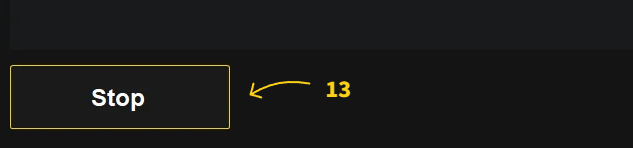
Stops the running task.
{% hint style="warning" %}
In some functions, the bot may continue briefly after clicking Stop (it needs to finish what it's currently doing). This is normal. Wait a few seconds.
{% endhint %}
{% hint style="warning" %}
Always use the **Stop** button first and wait for it to finish. Closing the bot mid-operation may result in unsaved task file changes.
{% endhint %}
***
## Common Mistakes
{% hint style="danger" %}
* ❌ Changing threads after clicking Start (changes are ignored during a task)
* ❌ Closing the bot instead of using the Stop button (causes data loss)
* ❌ Changing function parameters while a task is running (changes won't apply)
* ❌ Panicking when the bot takes a few seconds to stop (it needs time to finish current operations)
{% endhint %}